
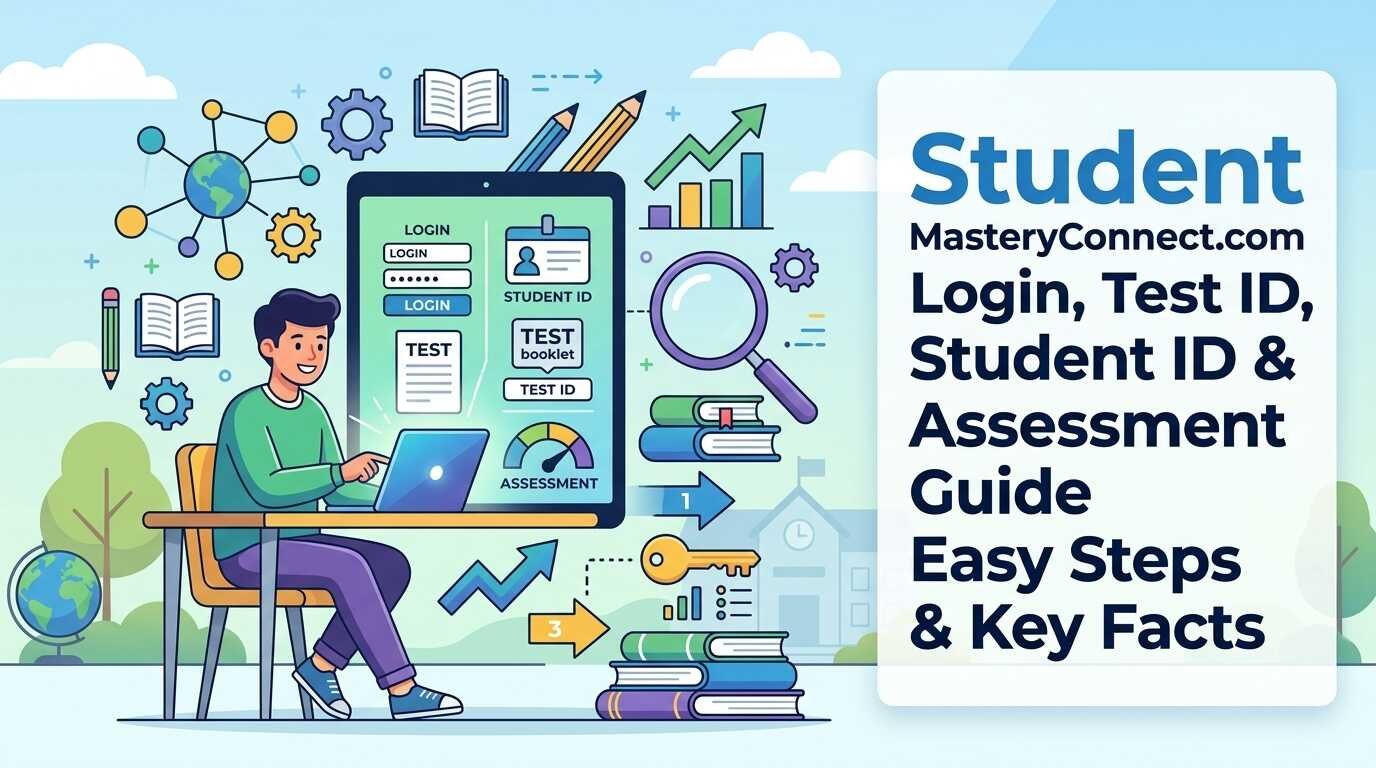
If your teacher or school has told you to use student masteryconnect.com, Do I need a username and password, Test ID, Student ID, or school login? The answer depends on how your school or teacher is administering the assessment.
Mastery Connect offers many different options for students to access assessments. A student can access an assessment through the browser testing site with a Test ID and Student ID, through the Mastery Connect Student Portal, or through an integrated learning management system such as Canvas. Schools can also provide sign-in options for Google, Clever, and Class Link.
That distinction matters because student masteryconnect.com is not simply another name for every Mastery Connect login screen. In particular, the browser assessment route and the Student Portal serve different purposes.
This booklet explains how the routes work, what each credential is, how to locate an assessment, what to do if a Test ID does not work, and what students can expect when they have submitted an assessment.
What Is Student MasteryConnect.com?
The phrase student masteryconnect.com generally refers to the student assessment website at student masteryconnect.com.
In the browser assessment workflow, the teacher / test coordinator delivers a Test ID. The student enters that Test ID at the student assessment website, then the student enters his/her Student ID. This pathway routes the student immediately into the assessment rather than having to browse through all of the classes and activities.
This is a key difference from Mastery Connect Student Portal.
The Student Portal is made available for wider access to students. Instructure’s existing documentation explains that students can sign in to access their classes, activities, assessments, standards mastery progress, and semester reports.
So, if you searched for student masteryconnect.com because your teacher gave you a Test ID, you are likely dealing with the browser-based assessment route. If your school gave you a normal Mastery Connect account or directs you through a school sign-in system, you may instead use the Student Portal.
Student MasteryConnect.com vs. Mastery Connect Student Portal
These two access methods are easy to confuse, but they are not identical.
| Access method | Main purpose | Typical information needed | Where you may start |
| Browser assessment | Take a specific assessment | Test ID + Student ID | student.masteryconnect.com |
| Student Portal | View classes, assessments, and progress | Account or supported SSO | Mastery Connect login |
| Canvas integration | Complete an assigned assessment through Canvas | Canvas/school login | Canvas course |
| School SSO | Access Mastery Connect through the school’s identity system | School-supported credentials | School portal, Clever, or ClassLink |
Instructure takes care of the browser exam as a Test ID and Student ID process, while the Student Portal can be designated by Mastery Connect account or Google, Clever, or Class Link supported.
Which method should you use?
Think about what your teacher gave you.
If you received a Test ID: use the assessment route your teacher specified.
If you received a Mastery Connect username and password: use the Student Portal.
If your school uses Clever or ClassLink: follow the school’s normal sign-in process.
If your teacher assigned the assessment in Canvas: open the Canvas course and follow the assignment instructions.
The most important rule is simple: follow the access method provided by your school or teacher rather than assuming every student uses the same route.
How to Use Student MasteryConnect.com With a Test ID
If your teacher tells you to use student masteryconnect.com and gives you a Test ID, the process is straightforward.
Step 1: Open the student assessment website
Go to the student assessment website provided in your school’s instructions.
Instructure’s documentation identifies student masteryconnect.com as the browser destination for this assessment workflow.
Step 2: Enter the Test ID
Enter the Test ID provided to you by your teacher or test coordinator.
Test ID is the assessment the student is being administered. Mastery Connect: Teachers can create and associate Test IDs to assessments and set the expiration date for assessments in the current Mastery Connect documentation.
Step 3: Enter your Student ID
After entering the Test ID, the assessment workflow asks for your Student ID.
Your Student ID is different from the Test ID. If you do not know your Student ID, Instructure advises students to ask their teacher or test coordinator.
Step 4: Begin the assessment
Once the required information is accepted, you can proceed to the assessment.
The exact questions, tools, accommodations, and interface can vary depending on how the assessment was created and configured using assessment access settings.
Example
Imagine your teacher says:
“Use the Mastery Connect testing site and enter the Test ID I gave you.”
In that situation, the Test ID identifies the assessment you are being asked to take. Your Student ID identifies you as the student taking it.
You should not substitute your Student ID for the Test ID or assume that your school password is your Student ID.
Test ID vs. Student ID vs. Password
One of the most common sources of confusion around student masteryconnect.com is treating every number or credential as though it serves the same purpose.
| Credential | Purpose | Usually supplied or managed by |
| Test ID | Identifies the assessment being administered | Teacher or test coordinator |
| Student ID | Identifies the student taking the assessment | School/district |
| Username/email | Identifies an account holder | School or Mastery Connect setup |
| Password | Authenticates an account | Account owner/school process |
They do not.Instructure specifically states that the Test ID is provided by the teacher or test coordinator, while the Student ID is entered separately during browser-based assessment access.
And…that a Test ID, is not your student account password and a Student ID is not always the same thing as your Test ID.
If you are not sure about the numbers, do not keep guessing. You can ask the teacher or test administrator for the right number.
How to Use the Mastery Connect Student Portal
The Student Portal provides a broader experience for online student learning than the direct assessment website.
According to Instructure, students can use the portal to view classes, activities, assessments, standards mastery progress, and semester progress reports.
A typical portal workflow looks like this:
- Open the Mastery Connect login page provided by your school.
- Sign in with your school-approved account or supported sign-in method.
- Open the relevant class.
- Look for available assessments or activities.
- Select the assessment your teacher has made available.
- Complete and submit it according to the displayed instructions.
The exact login option can vary. Current Instructure documentation lists Mastery Connect credentials, Google, Clever, and ClassLink as possible sign-in methods.
This is why searching for student masteryconnect.com does not necessarily mean you should create a new account. Your school may already have an account or single-sign-on arrangement for you.
Can Students Access Mastery Connect Through Canvas?
Yes. You can connect your Canvas with Mastery Connect.
Some schools use Canvas. In that case, rather than having your teacher tell you to enter a Test ID at the stand alone assessment website, he/she will assign you a Mastery Connect assessment.
The documentation from Instructure states that students will be able to take an assessment linked to the Mastery Connect assessment within a Canvas course. The assessment will be taken via the Canvas flow of the assessment and the score received for the assignment will be posted to the Canvas Gradebook.
Example: Your teacher gives you a Canvas assignment
Suppose your teacher says:
“Open today’s assessment in Canvas.”
In that situation, start in your Canvas course rather than automatically searching for student masteryconnect.com.
If the assignment launches Mastery Connect, follow the instructions shown there. The school integration determines how the assessment opens and where you return after completing it.

What If Your School Uses Clever, ClassLink, or Google?
Mastery Connect supports several sign-in methods for the Student Portal.
Current Instructure documentation describes Google, Clever, and ClassLink sign-in options in addition to Mastery Connect account credentials.
This matters because students at different schools may see different login buttons.
For example:
- One school may use Google accounts.
- Another may use Clever.
- Another may use ClassLink.
- Another may provide Mastery Connect credentials directly.
The presence or absence of one of these options does not necessarily mean something is wrong with your account. Your school’s configuration determines which sign-in method is available.
Where Do I Find My Mastery Connect Assessment?
There are several possible places.
If you received a Test ID
Use the browser assessment route described by your teacher. The Test ID is intended to identify the particular assessment being administered.
If your teacher says the assessment is in the Student Portal
Sign in to the portal and look under the appropriate class or assessment area. The Student Portal can display assessments that the teacher has made available.
If your teacher assigned it in Canvas
Open the relevant Canvas course and locate the assignment. Mastery Connect assessments can be integrated into Canvas as assignments.
If your school uses Clever or ClassLink
Use the school’s normal sign-in route and then access Mastery Connect through the available student resources.
The important point is that there is not one universal student workflow for every school.
What Happens When You Take a Mastery Connect Assessment?
At the assessment. Will vary depending on the assessment type and enabled settings.
On a browser-based assessment, students can submit answers and move between questions. Some assessments may offer additional features if the feature has been turned on. Instructure specifically reports an assessment with enhanced accommodations, and tools such as text-to-speech when turned on.
Depending on the way the test is set up, you might notice navigation buttons, question numbers, arrows, or other tools.
Just because you will take the assessment with the other student does not mean their assessment will be identical to yours. Teachers and schools are able to customize assessments.
How Do You Submit a Mastery Connect Assessment?
At the end, use the submission or finish control supplied by the assessment.
Instructure’s student assessment documentation says when creating an assessment student will select Finish to submit the assessment.
Preview your responses (if your test allows), after you submit. What your instructor can see may be affected by the settings your instructor selected.
For instance, teachers might make information such as scores or mastery reports available to students, but make the answers or item analysis at the question level visible only to teachers.
Can Students See Their Scores and Mastery Progress?
It depends on the test, and the environment in which the test takes place at the school or teacher.
Students can view mastery progress and progress reports using the Mastery Connect Student Portal.
But students shouldn’t expect to find the answers to everything right away, or expect that “every report will be available or obvious.”
The student-experience official documentation says that the post-test information is subject to teacher configurations.
But those are different. A student can submit successfully that assessment, but may not be granted access to the complete assessment analysis automatically.
Why Can’t I See My Mastery Connect Assessment?
If you signed in but cannot find your assessment, do not immediately assume that your account is broken.
Several explanations are possible.
The Teacher Has Not Yet Made the Assessment Available
An assessment may not appear in the Student Portal until it has been made available through the appropriate setup.
You are looking in the wrong class
Check that you are viewing the class where the teacher assigned the assessment.
Your teacher is using Canvas
If your school uses the Canvas integration, the assessment may be delivered through your Canvas course instead of the standalone Student Portal.
You were supposed to use a Test ID
A teacher may have chosen the browser-based Test ID method instead of publishing the assessment through your normal portal.
You are using the wrong account
If your school uses Google, Clever, ClassLink, or another school-supported login, make sure you are using the account associated with your student profile.
If none of these explanations fits, your teacher or school test coordinator is the appropriate person to verify whether the assessment is active and assigned to you.
Why Is My Mastery Connect Test ID Not Working?
A Test ID can fail for several reasons.
First, carefully check that you entered the number exactly as provided.
Second, confirm that you are using the correct Student ID when prompted.
Third, the Test ID has expired. Instructure’s teacher documentations says that Test IDs can expire, and an expired ID may prompt the creation of a new ID.
You may be using an incorrect delivery method.For instance, you may have passed the assessment on to your teacher in the Student Portal or Canvas, and you are not supposed to take the assessment in the browser route.
Quick troubleshooting table
| Problem | What to check first |
| Test ID is rejected | Confirm the number with your teacher |
| Student ID is rejected | Verify your school-issued Student ID |
| Test worked before but no longer works | Ask whether the Test ID expired |
| You cannot find the assessment | Check the correct class, Portal, or Canvas |
| Login buttons look different | Your school may use a different SSO option |
| You are unsure which method is appropriate to use. | Follow the teacher’s latest instructions |
Do not repeatedly guess credentials. A teacher or test coordinator can confirm the correct Test ID, Student ID, or delivery method.
Mastery Connect Student Login Troubleshooting
It helps to separate account problems from assessment problems.
If you cannot log in
Verify you’re using the correct username, email, password, or school-supported sign-in. According to Instructure’s Student Portal documentation, students having trouble signing in should verify their account has been activated and then contact their teacher if they do not remember their password.
If you can log in but cannot find your test
That is a different problem. Check:
- The correct class
- The assessment availability
- Canvas
- Whether your teacher gave you a Test ID
- Whether your school uses another delivery method
If the Test ID works but the Student ID does not
No, use the same number. Student ID number is only used for those students who have forgotten it, and they should ask the teacher or test coordinator for their Student ID number. Instructure provides specific guidance for students who have forgotten their Student ID.
Which Mastery Connect Login Method Should You Use?
If you are still unsure, use this simple decision guide.
| Your situation | Most appropriate starting point |
| Teacher gave you a Test ID | Student assessment website |
| Teacher gave you a Mastery Connect account | Student Portal |
| School uses Google sign-in | School-supported Google login |
| School uses Clever | Clever-supported Mastery Connect login |
| School uses ClassLink | ClassLink-supported login |
| Assessment is a Canvas assignment | Your Canvas course |
| You have no instructions | Ask your teacher which method applies |
The important takeaway is that student masteryconnect.com is only one part of the wider Mastery Connect student experience. Current Instructure documentation confirms separate browser assessment, Student Portal, and Canvas workflows.
Basic Security Tips for Students
When accessing student masteryconnect.com, use the address or login method provided by your school or teacher.
Don’t put your school login credentials into websites that look a lot like your usual school site. If you’re on a page and something is asking you for information that you don’t normally put in, that’s a good sign to stop and check with your teacher or school.
Other than that, be sure not to share your school password or any personal accounts with other students.
The most secure plan would be to follow the teacher or school staff directions and practice student account security. However, these should be followed only if you understand them.

Frequently Asked Questions:
1.What is student.masteryconnect.com used for?
Student masteryconnect.com is used for browser-based Mastery Connect assessments. In this workflow, students enter a Test ID supplied by the teacher or test coordinator and then enter their Student ID.
2.Is student masteryconnect.com the same as the Mastery Connect Student Portal?
No. The browser assessment site is designed to provide direct access to an assessment using a Test ID and Student ID. The Student Portal provides broader access to classes, activities, assessments, mastery progress, and progress reports.
3.What is a Mastery Connect Test ID?
A Test ID identifies the assessment being administered. The teacher or test coordinator provides it to students when the assessment is delivered through the browser testing workflow.
4.Is my Test ID the same as my Student ID?
No. They serve different purposes. The Test ID identifies the assessment, while the Student ID identifies the student taking it.
5.Can I take a Mastery Connect assessment through Canvas?
Yes, when your school has the Mastery Connect and Canvas integration configured. Students can access linked Mastery Connect assessments through their Canvas course.
6.Why can’t I see my Mastery Connect assessment?
The assessment may not yet be available, you may be looking in the wrong class, or your teacher may be delivering it through a Test ID or Canvas instead of the Student Portal. Check the teacher’s instructions first.
7.What should I do if my Mastery Connect Test ID does not work?
Verify the Test ID and your Student ID with your teacher or test coordinator. The Test ID may also have expired, in which case the teacher or test coordinator may need to provide an active one.
Conclusion
Understanding student masteryconnect.com becomes much easier once you identify which Mastery Connect access method your school is using. Browser assessment route (test ID, student ID) Student Portal provides wider access to classes, assessments, and mastery progress. In addition, schools may choose Google, Clever, Class Link, and Canvas integrations.
When your Test ID does not work or an assessment is absent… Never guess if credentials aren’t working! Avoid multiple attempts using various log-in options. Double-check if your teacher prefers you to test through the browser testing site, Student Portal, or Canvas, and if you need help, your school test coordinator or teacher can tell you what you should use.